

Bambu Lab A2L Maintenance Schedule
A no-panic maintenance guide for the large-format A-Series printer

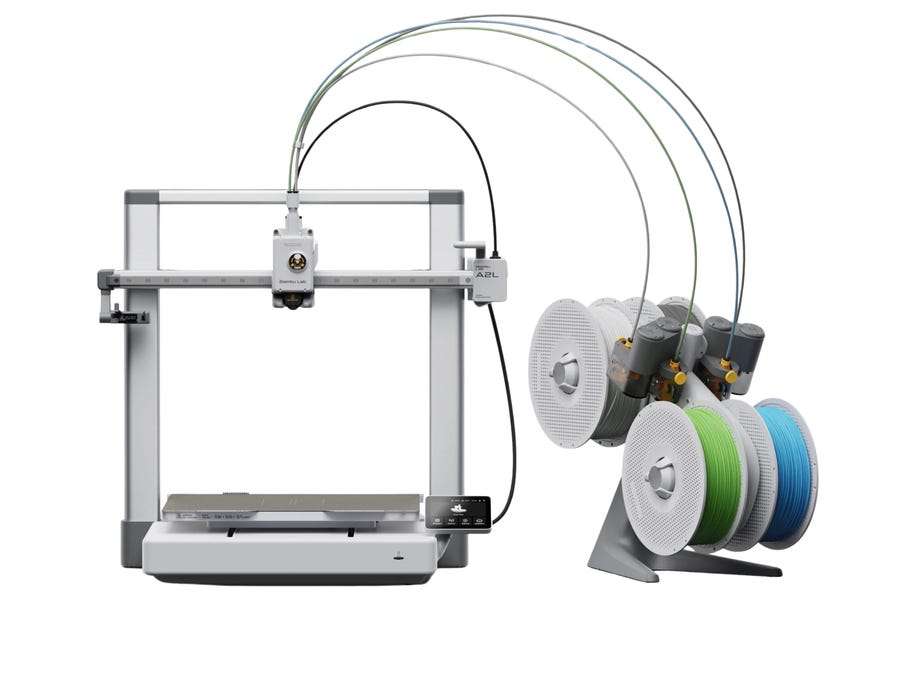
The Bambu Lab A2L is basically the “I need more room” printer in the A-Series lineup.
It is built for bigger prints, larger home projects, cosplay props, batches of parts, and creative projects that do not fit comfortably on a standard 256 mm-class bed.
That bigger build volume is great.
It also means one thing New Makers need to understand:
Bigger printer, bigger moving parts, bigger prints, and longer jobs mean maintenance matters.
The A2L is still beginner-friendly, but it is not maintenance-free.
It has guide rails, belts, idler pulleys, an extruder, filament sensors, a hotend, a build plate, a moving bed, optional AMS/AMS Lite workflows, and plenty of places for dust, filament bits, and neglect to become your problem later.
Wiggy translation:
The A2L gives you more space to print. It also gives you more printer to keep clean.
What Makes the A2L Different?
The A2L is not just a stretched A1.
It is a large-format A-Series machine with more room, stronger motion demands, and extra features built around bigger creative projects.
Important A2L details:
Large 330 × 320 × 325 mm build volume
Open-frame design
300°C maximum nozzle temperature
80°C maximum bed temperature
PMSM closed-loop servo extrusion system
Adaptive vibration compensation
Granular dampers built into the frame
Filament runout detection
Nozzle clog detection
Tangled spool detection
Physical blob detection
Optional blade cutting and pen plotting modules
AMS/AMS Lite support for multicolor workflows
What that means for maintenance:
Keep the motion system clean.
Keep belts and pulleys healthy.
Keep the filament path clean.
Keep the build plate clean.
Watch long prints carefully.
Do not ignore system prompts.
Do not treat it like a tiny printer that only runs two-hour jobs.
Wiggy translation:
Large-format printing is awesome until a tiny maintenance issue ruins a giant print at hour nine.
Supplies to Keep on Hand
You do not need a repair shop, but you should keep a small A2L maintenance kit ready.
Recommended supplies:
Dish soap
90%+ isopropyl alcohol
Lint-free cloths or microfiber cloths
Cotton swabs or precision swabs
Small soft brush
Compressed air or electric air duster
Bambu-compatible lubricating oil
Bambu-compatible grease
Replacement nozzles or hotend assemblies
Replacement nozzle wipers, if applicable
Replacement filament cutter parts, if applicable
Replacement PTFE tubing or filament path parts, if needed
Reusable silica gel/desiccant for filament storage
Small hex key set
Small container for screws during maintenance
Buyer note:
For A2L-specific parts, check compatibility carefully.
The printer is new, so do not assume every A1, A1 Mini, P1S, or X1 part fits the A2L.
Wiggy translation:
“Looks close enough” is not a parts compatibility strategy.
Fast Maintenance Routine
Before every print
Check the basics:
Build plate is clean
Nozzle is not covered in old plastic
Bed is clear
Filament path is not tangled
Spool can spin freely
No loose filament bits are near the motion system
First layer starts cleanly
This matters more on the A2L because big prints can run a long time.
A dirty plate on a small print wastes an hour or two.
A dirty plate on a large print can waste a whole day (or more).
After every few prints
Do a quick cleanup:
Remove purge scraps
Wipe loose filament bits
Check for plastic near the nozzle
Check the bottom and back areas for debris
Look for strings near fans, belts, rails, and pulleys
Check the build plate for residue or fingerprints
Wiggy translation:
Do not let the printer slowly turn into a plastic crumb drawer.
Weekly
Do a simple weekly inspection:
Wash the build plate if adhesion is getting weird
Wipe dust from accessible areas
Check belts for wear or looseness
Check fans for dust and strings
Check the nozzle area for buildup
Check AMS/AMS Lite filament paths if using multicolor
Check filament dryness
You are not taking the machine apart.
You are just catching obvious problems early.
Monthly
Do a deeper check:
Clean and lubricate the X-axis as recommended
Inspect the Y-axis rails
Inspect Z-axis movement
Check belt tension
Check idler pulleys
Inspect the extruder
Check filament sensors and filament path
Clean the camera if needed
Run calibration if movement or print quality has changed
Wiggy translation:
Monthly maintenance is where you catch problems before they become “why does my printer sound like a shopping cart?”
Every 200 printing hours or when prompted
Pay attention to printer prompts.
For the A2L, the Y-axis requires maintenance after the initial setup and then periodically by print time.
If the printer asks for rail maintenance, do not ignore it.
That reminder exists because bedslingers move the bed a lot.
A big bed moving for long prints adds up.
As needed
Do these when symptoms show up:
Cold pull for clogs
Nozzle replacement
Hotend replacement
Extruder cleaning
Belt tensioning
Idler pulley lubrication
Hall sensor cleaning
Filament hub cleaning
PTFE tube replacement
Build plate replacement
Wiggy translation:
As needed does not mean never. It means the printer will give you symptoms if you are paying attention.
Build Plate Maintenance
When to do it
Before prints, after failed prints, and whenever adhesion gets weird.
Why it matters
Most “printer problems” are still build plate problems.
A bigger bed gives you more room to print, but it also gives you more surface area for fingerprints, dust, oils, and residue.
What to do
Remove the plate.
Wash with warm water and dish soap.
Dry fully with a clean towel.
Avoid touching the print surface.
Use isopropyl alcohol for quick touch-ups, not as a full replacement for soap washing.
When to wash immediately
Wash the plate if:
You touched it a lot
First layers stop sticking
Corners start lifting
Large prints detach
Adhesion becomes inconsistent across the bed
Wiggy translation:
Before you blame the printer, wash the plate. Yes, again. Bigger bed, same fingerprints.
Nozzle and Hotend
When to check it
Before big prints, after messy prints, and whenever extrusion looks weird.
Signs something is wrong
Filament curls upward during extrusion
First layer has missing lines
Extrusion looks thin or inconsistent
Printer reports clog-related issues
Top surfaces look rough
Under-extrusion appears mid-print
Burnt plastic builds up around the nozzle
Plastic blob forms near the hotend
What to do
Inspect the nozzle.
Remove plastic buildup carefully.
Run a cold pull if you suspect a partial clog.
Replace the nozzle/hotend if cleaning does not solve it.
Stop printing if plastic is leaking around the heater area.
Wiggy translation:
If the filament is curling up like it is trying to escape, check the nozzle.
Cold Pull Maintenance
When to do it
Use a cold pull when you suspect a partial clog or dirty nozzle path.
Common symptoms:
Inconsistent extrusion
Missing lines
Rough extrusion
Filament does not flow cleanly
Nozzle clogs keep coming back
Filament quality or diameter seems inconsistent
Why it matters
A cold pull helps remove debris or burnt material from inside the nozzle path.
It is not something you need to do every week.
It is a troubleshooting tool.
Wiggy translation:
A cold pull is for clearing a suspected clog, not for entertaining yourself on a Tuesday.
Guide Rails and Motion System
When to do it
Follow the printer’s maintenance prompts and Bambu’s A2L guidance.
A simple practical version:
Check motion surfaces monthly.
Maintain the X-axis about monthly.
Maintain the Y-axis after setup and around the print-hour interval.
Inspect Z movement during monthly checks.
Do sooner if movement sounds rough, dusty, or uneven.
What to look for
Dust on rails
Dry-looking motion surfaces
Grinding or squeaking
Rough movement
Visible debris
Layer quality changing
Ringing getting worse
Bed movement sounding rough
What to do
Power off the printer.
Wipe dust and debris.
Apply the correct lubricant where Bambu calls for it.
Move the axis to distribute lubricant.
Wipe off excess.
Important:
Use the correct lubricant in the correct place.
Do not randomly grease everything.
Do not spray lubricant inside the printer.
Wiggy translation:
Lubrication is maintenance. Randomly making everything shiny is not.
Belt Tension
When to check it
Monthly, after moving the printer, after maintenance, or if print quality changes.
Signs of belt problems
Layer shifts
Ringing or ghosting
Loose-looking walls
Odd diagonal artifacts
Print quality suddenly gets worse
Belt looks frayed
Belt teeth look damaged
Movement sounds wrong
What to do
Inspect belts visually.
Check for dust, wear, fraying, or oil.
Use the A2L belt tensioning procedure if needed.
Run calibration after belt work.
Do not oil the belts.
Wiggy translation:
Oil on belts is not maintenance. It is how you create a new problem with confidence.
Idler Pulleys
When to check them
During monthly inspection or when movement sounds squeaky or rough.
Why they matter
Idler pulleys guide belt movement.
If they get dirty, dry, or noisy, motion can become less smooth.
What to do
Power off the printer.
Inspect pulley areas.
Clean debris.
Lubricate only where the official procedure calls for it.
Keep lubricant off belts.
Wipe away excess.
Wiggy translation:
Oil the pulley if it needs it. Do not marinate the belt.
Extruder Cleaning
When to check it
Monthly for heavy use, every few months for light use, or whenever feeding symptoms appear.
Signs the extruder needs attention
Clicking
Grinding filament
Under-extrusion
Filament dust
Feeding resistance
Clog warnings
Filament load/unload issues
AMS/AMS Lite feeding problems
What to do
Unload filament.
Power off the printer.
Inspect the filament path.
Remove dust with a brush or air.
Check for chewed filament.
Clean the extruder area if needed.
Test with a simple known filament after cleaning.
Wiggy translation:
If the extruder gear looks like it has been eating filament for breakfast, clean it.
Hall Sensor and Filament Detection
When to check it
When filament detection, runout, loading, unloading, or AMS-related behavior gets weird.
Why it matters
The A2L uses filament detection systems to understand whether filament is present and moving correctly.
Dust, filament fragments, or debris can confuse sensors.
What to do
Power off the printer.
Inspect the filament path.
Look for broken filament pieces.
Clean dust or debris carefully.
Follow Bambu’s Hall sensor cleaning guidance if detection errors continue.
Wiggy translation:
Sensors are useful until plastic crumbs start lying to them.
Filament Hub and Filament Path
When to check it
Any time filament loading or unloading feels wrong.
Symptoms to watch for
Filament will not feed
Filament will not unload
Repeated filament detection errors
AMS/AMS Lite feeding issues
Clicking during load
Broken filament in the path
Filament feels stuck
What to do
Stop forcing filament.
Power off if doing maintenance.
Check the filament path.
Remove broken filament pieces.
Check PTFE tubes and connectors.
Clean the filament hub if needed.
Reload filament and test.
Wiggy translation:
If filament is stuck, forcing harder is not troubleshooting. It is how you make a smaller problem more annoying.
AMS / AMS Lite Maintenance
When to check it
Weekly if using multicolor often. Monthly for lighter use.
What to check
Spools rotate freely
Filament is not tangled
PTFE tubes are not kinked
Filament path is clean
Desiccant is still useful if using an enclosed AMS
Filament is dry
Load/unload feels smooth
A2L-specific note
The A2L can work with AMS/AMS Lite multicolor workflows, including combinations of AMS and external filament depending on the setup.
More colors mean more filament paths.
More filament paths mean more places for friction, tangles, dust, and detection issues.
Wiggy translation:
Multicolor is great, but every extra spool is another chance for plastic to act weird.
Fans and Cooling
When to check them
Weekly for heavy use. Monthly for light use.
Why it matters
Fans help manage hotend cooling, part cooling, and electronics cooling.
Dust and filament strings can reduce airflow.
What to do
Power off the printer.
Hold fan blades still.
Use gentle air or a soft brush.
Remove dust and plastic strings.
Do not spin fans wildly with compressed air.
Wiggy translation:
Hold the fan blades still. Spinning them with air like a tiny carnival ride is not maintenance.
Camera and Sensors
When to check them
Monthly or whenever the view looks blurry or detection seems unreliable.
What to do
Use a microfiber cloth or cotton swab.
Lightly dampen with IPA if needed.
Wipe gently.
Do not flood sensor or camera areas.
Wiggy translation:
If the camera looks like it was filmed through mashed potatoes, clean the lens.
Cutting and Pen Modules
When to maintain them
Only if you use the A2L’s cutting or pen features.
What to check
Blade is clean
Blade holder moves properly
Cutting mat is clean and still sticky enough
Material is secured correctly
Pen module is seated properly
No scraps are left near moving parts
Important
The A2L does not support laser modules because of the open-frame safety concern.
Do not try to make it into a laser machine.
Wiggy translation:
Cutting module, yes. Laser science project, no.
Real-Life A2L Maintenance Routine
Light user
A few prints per week.
Do this:
Check the plate and nozzle before each print.
Clean loose debris weekly.
Inspect belts, fans, and rails monthly.
Lubricate motion parts when prompted or on the monthly schedule.
Check extruder and filament path every few months.
Regular user
Printing most days.
Do this:
Check plate, nozzle, and filament path before every print.
Clean the printer weekly.
Inspect belts and rails monthly.
Maintain X-axis monthly.
Maintain Y-axis when prompted or around the print-hour interval.
Check extruder and sensors monthly.
Heavy user
Long prints, large prints, or frequent multicolor.
Do this:
Clean the printer weekly.
Inspect motion system often.
Keep filament paths clean.
Watch for belt wear.
Keep nozzles and hotend clean.
Check AMS/AMS Lite paths regularly.
Do maintenance sooner than the light-use schedule.
Wiggy translation:
The more you print, the less you get to pretend maintenance is optional.
Full Monthly Maintenance Pass
Use this when you want to give the A2L a proper checkup.
Remove filament.
Power off the printer.
Clean the build plate separately.
Remove loose filament scraps.
Wipe visible dust and debris.
Inspect nozzle and hotend.
Inspect guide rails.
Lubricate axes if due.
Inspect belt condition and tension.
Check idler pulleys.
Inspect extruder and filament path.
Clean sensors if detection has been weird.
Check fans while holding blades still.
Check AMS/AMS Lite paths if equipped.
Power on.
Run calibration if motion parts were adjusted.
Start a simple test print.
Write down anything you changed.
Wiggy translation:
If you do not write down what changed, you are trusting your memory. Bold strategy.
The Big Don’ts
Do not:
Touch the nozzle or heatbed while hot.
Work on electronics while powered on.
Spray lubricant randomly.
Oil the belts.
Over-lubricate guide rails.
Ignore belt wear.
Ignore extruder clicking.
Force stuck filament.
Treat AMS issues like magic.
Use random non-compatible replacement parts.
Try to add a laser module.
Start replacing parts before identifying the problem.
Wiggy translation:
Maintenance is not “spray stuff until the printer feels loved.” Be specific.
Final Takeaway
The Bambu Lab A2L is built to make bigger projects easier, but bigger projects need a reliable machine.
The simple version:
Keep the build plate clean.
Keep the nozzle clear.
Keep the rails maintained.
Keep belts healthy.
Keep idler pulleys clean.
Keep the extruder clean.
Keep filament paths smooth.
Keep sensors free of debris.
Pay attention to maintenance prompts.
Do maintenance sooner if you print more.
Most A2L maintenance is not complicated.
It is just easy to ignore until a long print fails.
Wiggy’s final word:
The A2L gives you more room to make cool stuff. Do the boring maintenance so that room does not become extra space for spaghetti.